Wednesday, 6 November 2013

How to Recover your Windows 8 Machine from a System Crash

Recover your Windows 8 from System Crash 

A system crash in computing is an event in which a computer or a program (such as a software application or an operating system) ceases to function properly, often exiting after encountering errors. The program responsible may appear to freeze or hang until a crash reporting service documents details of the crash. If the program is a critical part of the operating system kernel, the entire computer may crash, often resulting in a fatal system errorIf you're having problems with your Windows 8 PC, you can try to restore, refresh, or reset it.

Restore your PC

A restore point is a representation of a stored state of your computer's system files. You can use a restore point to restore your computer's system files to an earlier point in time. Restore points are automatically created by System Restore weekly and when System Restore detects the beginning of a change to your computer, such as when you install a program or a driver.
System image backups stored on hard disks can also be used for System Restore, just like the restore points created by system protection. Even though system image backups contain both your system files and personal data, your data files won't be affected by System Restore.

If you think an app or driver that you recently installed caused problems with your PC, you can restore Windows back to an earlier point in time, called a restore point. System Restore doesn’t change your personal files, but it might remove recently installed apps and drivers. You can also create a restore point manually at any time.

 To create a restore point manually in windows 8, you can choose 2 methods.


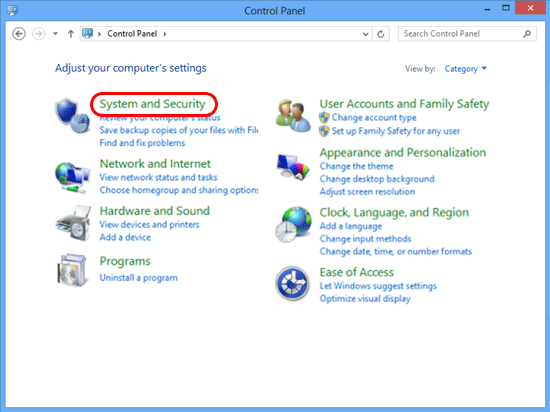
1. First, Goto ControlPanel --> System and Security --> File History --> Recovery --> Configure System Restore --> Create a Restore Point Now --> Give a name to the restore point then create.

2. Right Click on My Computer --> Properties --> System Protection --> Create System Restore Point.


To restore your PC to an earlier point in time

Goto ControlPanel --> System and Security --> File History --> Recovery --> Open System Restore --> Select a Restore Pointto restore  -->then wait for some to complete Windows 8 restore.

File History

File History regularly backs up versions of your files in the Documents, Music, Pictures, Videos, and Desktop folders on your PC. Over time, you'll have a complete history of your files. If the originals are lost, damaged, or deleted, you can restore them. You can also browse and restore different versions of your files. For example, if you want to restore an older version of a file (even if it wasn't deleted or lost), you can browse through a timeline, select the version you want, and restore it.

To set up a drive for File History

If you're going to use a new external drive, connect it to your PC. If you see a notification asking if you want to configure the drive for File History, click it, and then turn on File History on the screen the appears or we can manually enable it by,
Goto ControlPanel --> System and Security --> File History --> Turn on.

To restore your files or folders

Goto ControlPanel --> System and Security --> File History --> Restore Personal Files --> then you can browse and restore the different versions of your files if it lost or damaged. 

Saturday, 26 October 2013

Take Look at Some Google Products..........

 Google Products

Google Inc. is an American multinational corporation specializing in Internet-related services and products. 
It offers online productivity software including email (Gmail), an office suite (Google Drive), and social networking (Google+). Desktop products include applications for web browsing, organizing and editing photos, and instant messaging. The company leads the development of the Android mobile operating system and the browser-only Chrome OS for a netbook known as a Chromebook. Google acquired Motorola Mobility in May 2012. In 2012, a fiber-optic infrastructure was installed in Kansas City to facilitate a Google Fiber broadband service.

1. Android
                    Google has left its mark in the smartphone world as 80 percent of the Smartphones today are powered by the company's Android Operating System Initially Android was meant to serve as an OS for digital  cameras, but Google turned it into mobile software. Today, Android OS with its various versions that are named after a dessert or sweetener, is one of the most popular softwares to be used because of its easy interface, wide range of free apps and its open source nature that gives users option to update their Android versions on their devices for free.


2. Google Drive

        Google Drive is a file storage and synchronization service provided by Google, released on April 24, 2012, which enables user cloud storage, file sharing and collaborative editing.Google Drive is the home of Google Docs, a suite of productivity applications, that offer collaborative editing on documents, spreadsheets, presentations, and more.


 3. Chromebook


   It is a personal computer running Chrome OS as its operating system. The devices are designed to be used while connected to the Internet and support applications that reside on the Web, rather than traditional applications that reside on the machine itself.


 4. Google Fiber

           Google Fiber starts with a connection that is 100 times faster than today's average broadband speeds. Instant downloads.Google Fiber is an internet service which was launched in 2011 and provides a data packet speed of 1GB per second. This service was first rolled out in Kansas and then to Missouri, Texas and Utah in the U.S. Google Fiber comes out in different variants.


5. Smartwatch

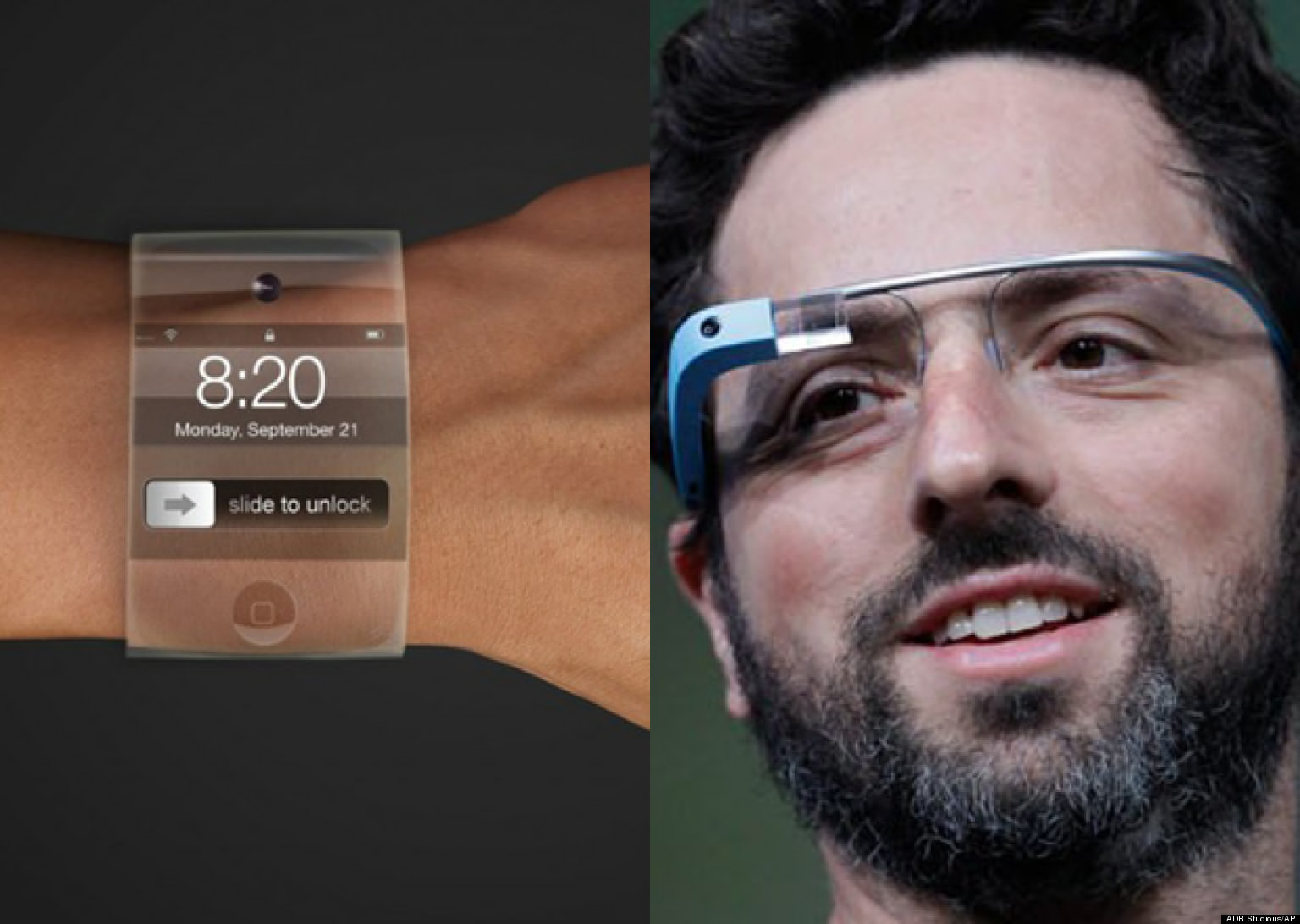
          To compete with other electronics company manufacturers, Google is also stepping up the game by exploring its potential in designing Smartwatches as it recently acquired WIMM Labs, an expert in wearable technology.


6. Google Glass


 Google Glass is a real-time product right out of a science fiction story. In 2012, Google unveiled its first wearable device that comes with many features. The gadget can be used as an extension of Android Smartphones and tablets and is used to capture photos and videos from a wearer’s perception. It also supports phone calls, and user can check out maps, read emails and text messages and perform various other tasks via voice commands.


7. Google driverless cars
 
The automobile world is said be greeted by the next big thing in the form of Driverless cars, Google’s proud innovative venture. This started as an idea from Google’s X Lab and these driverless cars are currently being tested by the company in Nevada, Florida and California in the U.S. These cars are still in testing phase.

Friday, 18 October 2013

Tools for Remote Access & Tech Support

Remote Access & Tech Support

                            Remote access of a computer is primarily used for accessing files or to provide support and maintenance. The ever growing number of computers, Smartphones and tablets in homes and offices make it difficult for IT experts to visit the site to offer support. As technology usage goes rampant, many  times, the consumers get stuck with issues, like remote access of devices or unresponsive software ,Remote tech support tools have become so sophisticated these days, unless there is a hardware issue valuable man hours of the network team can be saved. For those who are looking to implement remote access and support in their home or office,  In such cases you can find so many tools which offers incredible online solutions to fix the issues.

1. TeamViewer


             TeamViewer is a proprietary computer software package for remote control, desktop sharing, online meetings, web conferencing and file transfer between computers. The software operates with the Microsoft WindowsOS X,Linux, iOS, Android, Windows RT and Windows Phon operating systems. It is also possible to access a machine running TeamViewer with aweb browser.While the main focus of the application is remote control of computers

TeamViewer Screenshot on a machine running Windows 8.png

2. LogMein

LogMeIn is probably the most popular among the remote access tools and runs in almost every popular platform imaginable.  They do have an annoying number of similarly featured products and solutions though. For those who are just looking for basic remote access and login, the free account is more than enough.
With the paid Pro account, you can send large files directly from desktop to desktop, copy files, control and hear music. Remote printing and Wake on LAN features are also available. Combined with LogMeIn Central, you can run diagnostics, set up in-depth monitoring including CPU usage & memory utilization and pull analytics.
3. Chrome Remote Desktop
               Chrome Remote Desktop allows users to remotely access another computer through Chrome browser or a Chromebook.  Computers can be made available on an short-term basis for scenarios such as ad hoc remote support, or on a more long-term basis for remote access to your applications and files.  All connections are fully secured.

Chrome Remote Desktop is fully cross-platform.  Provide remote assistance to Windows, Mac and Linux users, or access your Windows (XP and above) and Mac (OS X 10.6 and above) desktops at any time, all from the Chrome browser on virtually any device, including Chromebooks.


4.Yuuguu

          Yuuguu is great for web conferencing and screen sharing. Yuuguu gives you so much. Screen sharing, so you can present your ideas. Audio conferencing, so you can talk it through together. Remote control, so you can make changes instantly.


5. Techinline

              Techinline is a remote support tool that enables instant, secure, and trouble-free connections between remote computers over the web and to any point in the world. This remote desktop tool provides a wide range of useful  features that allow you to effectively handle any support scenario that may be encountered.

Great solution for computer professionals who need on-demand remote desktop access to support end-users
6. Join.me
         join.me combines instant screen sharing and powerful meeting tools in an app that anyone can use to present, train, demo or concept. join.me is designed to be intuitive and accessible, providing features that you'll use every day for everything from show-and-tell to formal presentations. This tool is provided by LogMein.
Desktop
7. GoToMyPc
GoToMyPC is another popular tool for remotely accessing your desktop. Now owned by Citrix, the app is a great fit for both home as well as corporate users. Like in the case of LogMeIn, the process begins with the installation of a GoToMyPC client and the desktop can be accessed from anywhere.
GoToMyPC
8. CrossLoop
CrossLoop is a remote desktop service which allows users to share their computer screens and collaborate with others over the Internet. The service is free for both personal and professional users. CrossLoop needs to be downloaded and installed on both ends for it to work and screens can be shared by simply sharing the remote access code. CrossLoop also includes support for one-click remote PC access built in.
CrossLoop