Monday, 15 June 2015

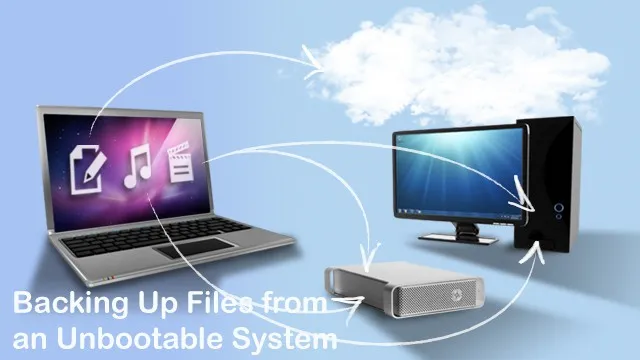
Backing Up Files from an Unbootable System


Whenever your Windows system does not boot or crashes then you do not have to pull out the hard drive or use any Linux Live CD to recover your data. You can use a Windows installer disk to quickly backup your files. What’s more you can use a Windows 7 disk to back up files from a Windows 8 system or vice versa.
Step1: Boot From a Windows Installer Disk
First, insert a Windows installer disk (or a USB drive with the Windows installer on it) onto your computer and restart your computer. If you are not able to boot, then you need to change the boot settings in your computer BIOS.
Step2: At startup select Repair Your Computer option which you will see at the bottom-left corner of the window, with both Windows 7 and Windows 8 installer disks.
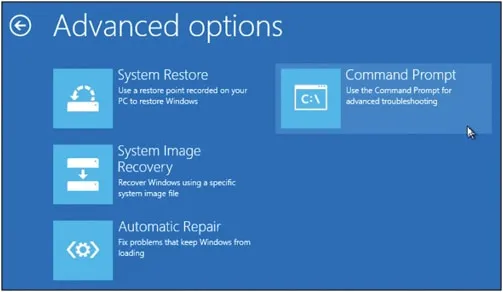
Step 3: If you are using a Windows 8 installer disk, select Troubleshoot > Advanced Options > Command Prompt.
Network-printer-in-Linux-(2)
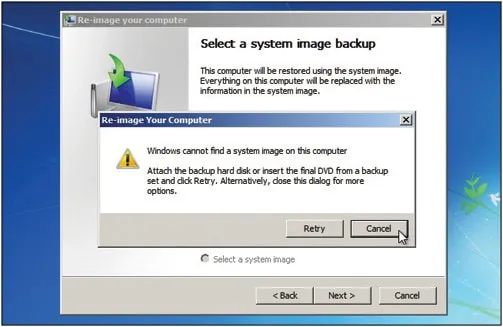
Step 4: If you are using a Windows 7 installer disk, select Restore your computer using a system image you created option and click on Next. When it unable to recover then it shows two option retry and cancle, press cancel

Network-printer-in-Linux-(3)
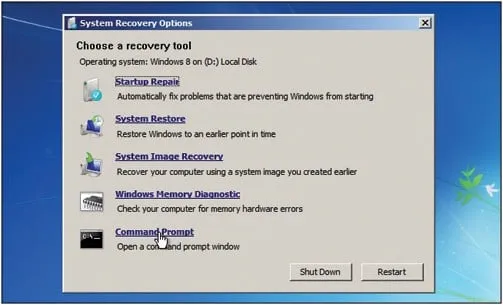
You will see the System Recovery Options window – click Command Prompt to launch a Command Prompt window.

Network-printer-in-Linux-(4)


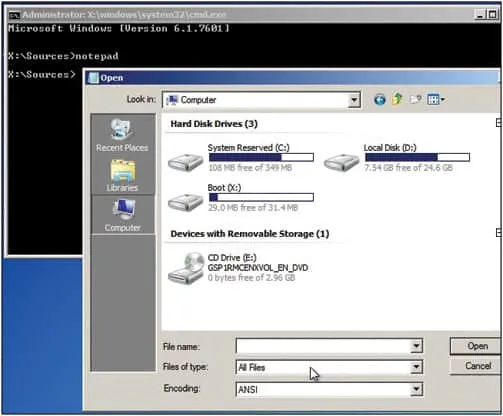
Step 5: When Command Prompt opens, type notepad and press Enter to launch a Notepad window. Click File and select Open in the Notepad window.
Step 6: Here, we want to open Windows Explorer. So, ensure you select the ALL Files option at the bottom of Windows and the click on My Computer. Then you will have all drives on your system including external drives and you will be able to copy paste your selected files on any drive.

Network-printer-in-Linux-(6)
Do not double-click any files as the Notepad will try to open them, and possibly freeze. If the Notepad freezes go back to command prompt and type taskmgr. This will launch Task Manager and kill the Notepad process and open it again from CMD. Once copying of files is done, shut down your computer and perform a clean install.

Sunday, 31 May 2015


The Future of Displays

Flexible, rollable are only of a few things that are heating up and speeding up. At the same time head-mounted displays and augmented reality are more advanced form of display technologies that will shape the future of displays. Also, manufacturers such as Samsung and LG are racing to build next-generation of displays in an effort to scale up screens to the point where they can support the sizes demanded by the
TV market.
Flexible display devices to capture the market
Flexible Displays are different from the more prevalent traditional flat screen displays used in most electronics devices. In the recent years there has been a growing interest for flexible displays. Majority of consumer electronics manufacturers are using this display in consumer electronics and it seems to be the next big thing in smart phone displays. The underlying technology that makes flexible displays possible is OLEDs. OLEDs have been available for several years mostly in mobile devices and use plastic substrate instead of glass substrate. By using a film-type encapsulation technique and gluing the protective film to the back of the panel, the panel becomes flexible and virtually unbreakable. Due to changes in the screen shape and creation of innovative design concepts, breakthrough will be made with mobile phone components. Motherboards, antennas, and batteries will all be downsized. They might also become foldable or transparent. The flexible display is a big innovation in the smart phone industry and it will inspire more revolutionary designs in mobile phones.
A Samsung Flexible AMOLED Screen Smartphone Prototype
Rollable display to be introduced in smart devices
Sony’s Rollable OLED Screen Prototype
The flat panel screens are being used widely since more than a decade. There has been a demand in display technology focusing on developing a lighter, thinner product which is easier to carry and store. It is a form of flexible display that can be rolled up into a scroll. Technologies involved in building a rollable display include electronic ink, Gyricon, and OLED. Rollable displays have many advantages over the glass displays including better durability, lighter weight, thinner dimensions, and can be perfectly curved or rolled up. Also the display area of a rollable display can be bigger than the device itself. It can be used in many devices such as laptops, PDA’s, smart phones, a wearable gadgets etc.
Head-Mounted Display market is set to expand
A head-mounted display or helmet mounted display, abbreviated HMD, is a display device, worn on the head or as part of a helmet, that has a small display optic in front of one (monocular HMD) or each eye (binocular HMD). The screen may be either CRT, LCD or OLED etc. There is another variant of HMD known as Optical HMD and has the capability of reflecting projected images and allowing the user to see through it. The capability of reflecting projected images comes through an optical mixer integrated into an Optical HMD which is constituted of partly silvered mirrors.  These displays have a variety of applications in augmented reality, aviation, military, medicine, sports, simulation etc. HMD can also revolutionize the video-gaming industry. Some of the HMD displays are available in the market including Oculus Rift, Sony HMZ-T3W etc but these are some mainstream devices that the consumers are acquainted to and will evolve in near future. Some HMD vendors integrate the device with on-board operating systems such as Android, allowing applications to run locally on HMD, thereby eliminating the need to be connected to an external device to generate video. These are sometimes referred to as Smart Goggles.
oculus-rift
Head-mounted displays may also be used with tracking sensors that allow changes in the angle and orientation to be recorded. When such data is available in the system computer, it can be used to generate the appropriate computer-generated imagery (CGI) for the angle-of-look at the particular time. This allows the user to ‘look around’ a virtual reality environment simply by moving the head without the need for a separate controller to change the angle of the imagery.  HMDs can also be integrated with Eye and Hand Tracking Systems. Eye tracking can be useful in a variety of contexts such as user interface navigation – by sensing the user’s gaze, a computer can change the information displayed on a screen, bring additional details to attention, etc. Hand Tracking allows for natural interaction with content and a convenient game-play mechanism and can play a bigger role in playing simulation, FPS Games.
8K is the next big thing
8k-uhdtv
You all must have heard the hot buzz 4K in recent times and also must have seen the 4K displays in almost every electronics store. Now the big gets bigger and here is 8k for you. It is the highest ultra high definition television (UHDTV) resolution to exist in the digital television and digital cinematography. 8K refers to the horizontal resolution of these formats, which are all in the order of 8,000 pixels, forming the total image dimensions (7680×4320). It is a display resolution that may eventually be the successor to 4K resolution. 8K FUHD has four times the horizontal and vertical resolution of the 1080p HDTV format, with sixteen times as many pixels, overall. As of now, 4K is believed to become a mainstream standard in televisions by 2017. Regular broadcasting of 8K signals could begin in around 2018, according to the Next Generation Television & Broadcasting Promotion Forum (NexTV-F), a Tokyo-based consortium for 4K, 8K and other standards. The world’s first 8K television was unveiled by Sharp at the Consumer Electronics Show (CES) in 2013.
Although 8K will not be a mainstream resolution anytime soon, some manufacturers are pushing for 8K cameras to get better 4K footage. Through a process called downsampling, a higher resolution 8K image downsampled to 4K, can create a sharper picture with richer colors than a 4K camera would be able to accomplish on its own with a lower resolution sensor.

Saturday, 23 May 2015

5 Best Linux Distros for Security Penetration  Testing

Here we discuss about some Penetration testing distros which are better at web application vulnerability discovery, forensics, WiFi cracking, reverse engineering, malware analysis, social engineering and much more..

1. CAINE (Computer Aided Investigative Environment) is an Ubuntu-based GNU/Linux live distribution. The main design objectives that CAINE aims to guarantee are: an interoperable environment that supports the digital investigator during the four phases of the digital investigation, a user-friendly graphical interface, and a semi-automated compilation of the final report.

 2. BlackArch Linux is an Arch Linux-based distribution for penetration testers and security researchers. The repository contains 1218 tools. You can install tools individually or in groups. BlackArch Linux is compatible with existing Arch installs.

 3. BackBox is a Linux distribution based on Ubuntu. It has been developed to perform penetration tests and security assessments. Designed to be fast, easy to use and provide a minimal yet complete desktop environment and latest stable version of the most used and best known ethical hacking tools.

 4. The Samurai Web Testing Framework has been pre-configured to function as a web pen-testing environment. They included tools such as the Fierce domain scanner and Maltego. For mapping, they provide WebScarab and ratproxy and for exploitation testing they included BeEF, AJAXShell and much more.

5. Kali Linux (formerly known as BackTrack) is a Debian-based distribution with a collection of security and forensics tools. It features timely security updates, support for the ARM architecture, a choice of four popular desktop environments, and seamless upgrades to newer versions. 


Thursday, 7 May 2015


Backing Up Files from an Unbootable System


Whenever your Windows system does not boot or crashes then you do not have to pull out the hard drive or use any Linux Live CD to recover your data. You can use a Windows installer disk to quickly backup your files. What’s more you can use a Windows 7 disk to back up files from a Windows 8 system or vice versa.
Step1: Boot From a Windows Installer Disk
First, insert a Windows installer disk (or a USB drive with the Windows installer on it) onto your computer and restart your computer. If you are not able to boot, then you need to change the boot settings in your computer BIOS.
Step2: At startup select Repair Your Computer option which you will see at the bottom-left corner of the window, with both Windows 7 and Windows 8 installer disks.
Step 3: If you are using a Windows 8 installer disk, select Troubleshoot > Advanced Options > Command Prompt.
Network-printer-in-Linux-(2)
Step 4: If you are using a Windows 7 installer disk, select Restore your computer using a system image you created option and click on Next. When it unable to recover then it shows two option retry and cancle, press cancel

Network-printer-in-Linux-(3)
You will see the System Recovery Options window – click Command Prompt to launch a Command Prompt window.

Network-printer-in-Linux-(4)


Step 5: When Command Prompt opens, type notepad and press Enter to launch a Notepad window. Click File and select Open in the Notepad window.
Step 6: Here, we want to open Windows Explorer. So, ensure you select the ALL Files option at the bottom of Windows and the click on My Computer. Then you will have all drives on your system including external drives and you will be able to copy paste your selected files on any drive.

Network-printer-in-Linux-(6)
Do not double-click any files as the Notepad will try to open them, and possibly freeze. If the Notepad freezes go back to command prompt and type taskmgr. This will launch Task Manager and kill the Notepad process and open it again from CMD. Once copying of files is done, shut down your computer and perform a clean install.

Friday, 17 April 2015

Azure Service Bus

Azure Service Bus is a generic, cloud-based messaging system for connecting just about anything—applications, services and devices—wherever they are. Connect apps running on Azure, on-premises—or both. You can even use Service Bus to connect household appliances, sensors and other devices like tablets or phones to a central application or to each other.Different situations call for different styles of communication. Sometimes, letting applications send and receive messages through a simple queue is the best solution. In other situations, an ordinary queue isn't enough; a queue with a publish-and-subscribe mechanism is better. And in some cases, all that's really needed is a connection between applications—queues aren't required. Service Bus provides all three options, letting your applications interact in several different ways.
Service Bus is a multi-tenant cloud service, which means that the service is shared by multiple users. Each user, such as an application developer, creates a namespace, then defines the communication mechanisms she needs within that namespace. Figure 1 shows how this looks.
Diagram of Azure Service Bus
Figure 1: Service Bus provides a multi-tenant service for connecting applications through the cloud.
Within a namespace, you can use one or more instances of four different communication mechanisms, each of which connects applications in a different way. The choices are:
  • Queues, which allow one-directional communication. Each queue acts as an intermediary (sometimes called a broker) that stores sent messages until they are received. Each message is received by a single recipient.
  • Topics, which provide one-directional communication using subscriptions-a single topic can have multiple subscriptions. Like a queue, a topic acts as a broker, but each subscription can optionally use a filter to receive only messages that match specific criteria.
  • Relays, which provide bi-directional communication. Unlike queues and topics, a relay doesn't store in-flight messages-it's not a broker. Instead, it just passes them on to the destination application.
  • Event Hubs, which provide event and telemetry ingress to the cloud at massive scale, with low latency and high reliability.
When you create a queue, topic, relay, or Event Hub, you give it a name. Combined with whatever you called your namespace, this name creates a unique identifier for the object. Applications can provide this name to Service Bus, then use that queue, topic, relay, or Event Hub to communicate with one another.
To use any of these objects, Windows applications can use Windows Communication Foundation (WCF). For queues, topics, and Event Hubs Windows applications can also use Service Bus-defined messaging APIs. To make these objects easier to use from non-Windows applications, Microsoft provides SDKs for Java, Node.js, and other languages. You can also access queues, topics, and Event Hubs using REST APIs over HTTP.
It's important to understand that even though Service Bus itself runs in the cloud (that is, in Microsoft's Azure datacenters), applications that use it can run anywhere. You can use Service Bus to connect applications running on Azure, for example, or applications running inside your own datacenter. You can also use it to connect an application running on Azure or another cloud platform with an on-premises application or with tablets and phones. It's even possible to connect household appliances, sensors, and other devices to a central application or to one other. Service Bus is a generic communication mechanism in the cloud that's accessible from pretty much anywhere. How you use it depends on what your applications need to do.

Queues

Suppose you decide to connect two applications using a Service Bus queue. Figure 2 illustrates this situation.
Diagram of Service Bus Queues
Figure 2: Service Bus queues provide one-way asynchronous queuing.
The process is simple: A sender sends a message to a Service Bus queue, and a receiver picks up that message at some later time. A queue can have just a single receiver, as Figure 2 shows, or multiple applications can read from the same queue. In the latter situation, each message is read by just one receiver-for a multi-cast service you should use a topic instead.
Each message has two parts: a set of properties, each a key/value pair, and a binary message body. How they're used depends on what an application is trying to do. For example, an application sending a message about a recent sale might include the properties Seller="Ava" and Amount=10000. The message body might contain a scanned image of the sale's signed contract or, if there isn't one, just remain empty.
A receiver can read a message from a Service Bus queue in two different ways. The first option, called ReceiveAndDelete, removes a message from the queue and immediately deletes it. This is simple, but if the receiver crashes before it finishes processing the message, the message will be lost. Because it's been removed from the queue, no other receiver can access it.
The second option, PeekLock, is meant to help with this problem. Like ReceiveAndDelete, a PeekLock read removes a message from the queue. It doesn't delete the message, however. Instead, it locks the message, making it invisible to other receivers, then waits for one of three events:
  • If the receiver processes the message successfully, it calls Complete, and the queue deletes the message.
  • If the receiver decides that it can't process the message successfully, it calls Abandon. The queue then removes the lock from the message and makes it available to other receivers.
  • If the receiver calls neither of these within a configurable period of time (by default, 60 seconds), the queue assumes the receiver has failed. In this case, it behaves as if the receiver had called Abandon, making the message available to other receivers.
Notice what can happen here: The same message might be delivered twice, perhaps to two different receivers. Applications using Service Bus queues must be prepared for this. To make duplicate detection easier, each message has a unique MessageID property that by default stays the same no matter how many times the message is read from a queue.
Queues are useful in quite a few situations. They let applications communicate even when both aren't running at the same time, something that's especially handy with batch and mobile applications. A queue with multiple receivers also provides automatic load balancing, since sent messages are spread across these receivers.

Topics

Useful as they are, queues aren't always the right solution. Sometimes, Service Bus topics are better. Figure 3 illustrates this idea.
Diagram of Service Bus Topics and Subscriptions
Figure 3: Based on the filter a subscribing application specifies, it can receive some or all of the messages sent to a Service Bus topic.
A topic is similar in many ways to a queue. Senders submit messages to a topic in the same way that they submit messages to a queue, and those messages look the same as with queues. The big difference is that topics let each receiving application create its own subscription by defining a filter. A subscriber will then see only the messages that match that filter. For example, Figure 3 shows a sender and a topic with three subscribers, each with its own filter:
  • Subscriber 1 receives only messages that contain the property Seller="Ava".
  • Subscriber 2 receives messages that contain the property Seller="Ruby" and/or contain an Amount property whose value is greater than 100,000. Perhaps Ruby is the sales manager, and so she wants to see both her own sales and all big sales regardless of who makes them.
  • Subscriber 3 has set its filter to True, which means that it receives all messages. For example, this application might be responsible for maintaining an audit trail and therefore it needs to see all the messages.
As with queues, subscribers to a topic can read messages using either ReceiveAndDelete or PeekLock. Unlike queues, however, a single message sent to a topic can be received by multiple subscribers. This approach, commonly called publish and subscribe, is useful whenever multiple applications might be interested in the same messages. By defining the right filter, each subscriber can tap into just the part of the message stream that it needs to see.

Relays

Both queues and topics provide one-way asynchronous communication through a broker. Traffic flows in just one direction, and there's no direct connection between senders and receivers. But what if you don't want this? Suppose your applications need to both send and receive messages, or perhaps you want a direct link between them and you don't need a broker to store messages. To address scenarios such as this, Service Bus provides relays, as Figure 4 shows.
Diagram of Service Bus Relay
Figure 4: Service Bus relay provides synchronous, two-way communication between applications.
The obvious question to ask about relays is this: Why would I use one? Even if I don't need queues, why make applications communicate via a cloud service rather than just interact directly? The answer is that talking directly can be harder than you might think.
Suppose you want to connect two on-premises applications, both running inside corporate datacenters. Each of these applications sits behind a firewall, and each datacenter probably uses network address translation (NAT). The firewall blocks incoming data on all but a few ports, and NAT implies that the machine each application is running on doesn't have a fixed IP address that you can reach directly from outside the datacenter. Without some extra help, connecting these applications over the public Internet is problematic.
A Service Bus relay provides this help. To communicate bi-directionally through a relay, each application establishes an outbound TCP connection with Service Bus, then keeps it open. All communication between the two applications will travel over these connections. Because each connection was established from inside the datacenter, the firewall will allow incoming traffic to each application without opening new ports. This approach also gets around the NAT problem, because each application has a consistent endpoint in the cloud throughout the communication. By exchanging data through the relay, the applications can avoid the problems that would otherwise make communication difficult.
To use Service Bus relays, applications rely on Windows Communication Foundation (WCF). Service Bus provides WCF bindings that make it straightforward for Windows applications to interact via relays. Applications that already use WCF can typically just specify one of these bindings, then talk to each other through a relay. Unlike queues and topics, however, using relays from non-Windows applications, while possible, requires some programming effort; no standard libraries are provided.
Unlike queues and topics, applications don't explicitly create relays. Instead, when an application that wishes to receive messages establishes a TCP connection with Service Bus, a relay is created automatically. When the connection is dropped, the relay is deleted. To let an application find the relay created by a specific listener, Service Bus provides a registry that enables applications to locate a specific relay by name.
Relays are the right solution when you need direct communication between applications. For example, consider an airline reservation system running in an on-premises datacenter that must be accessed from check-in kiosks, mobile devices, and other computers. Applications running on all of these systems could rely on Service Bus relays in the cloud to communicate, wherever they might be running

Sunday, 22 March 2015

Sailfish OS

Sailfish is a mobile operating System (OS) combining the Linux Kernel, the Mer core and proprietary software written by mobile software developer Jolla. Sailfish is being developed by Jolla in cooperation with the Mer project community and corporate members of the Seilfish Alliance. Sailfish is used in the Jolla smartphone, in the upcoming Jolla Tablet, and by other licensees.The OS is mainly targeted at mobile devices and is also intended to support other devices.


The Sailfish OS and the Sailfish Software Sevelopment Kit (SDK) are based on the Linux Kernal and Mer Sailfish OS includes a multi-tasking graphical Shell called "Lipstick" built by Jolla on top of Jolla uses free and open source grpahics drive the Hybris library allows use of proprietary graphics device drivers for Android.Jolla's stated goal is for Sailfish to be open source eventually.
Sailfish OS can run Android applications through a proprietary compatibility layer.
                          
                                  
The Sailfish OS SDK was announced in Helsinki at Slush in 2012, and the alpha was published in February 2013. The SDK, installation and coding tutorials are available for free download from the Sailfish OS website although the overall license is not open source.
Sailfish SDK uses Qt with Virtual Box for development, compiling and emulation purposes, in contrast to simulation method.This technique allows compilation on the Sailfish OS and full testing of developed software in the virtual Machine, emulating but not simulating the whole Sailfish OS.The technique also separates development activities and side effects from everything else running on the host particular computer, leaving it undisturbed by developments and tests. According to Jolla, development with Sailfish SDK is development on Sailfish OS itself; there are no differences between developed software appearance and behaviour in the SDK and on a device running Sailfish OS.
The availability of source code to the SDK allows shaping and rebuilding for companies' or developers' specific needs, creating a context-specific environment that is set once and needs no preparation when the device is booted. The SDK runs on the operating systems Android-32 and 64 bit versions of Linux, 64-bit versions of OS X, and Microsoft Windows. It can be used for compiling software for Sailfish OS devices from Linux sources. Its general console/terminal mode follows a commonly used standard. A compatible binaries or libraries can also be used.
Application programming interfaces


SailfishOS uses open source Qt APIs (Qt 5, QtQuick 2 etc.) and a closed source Sailfish Silica for the UI. Standard Linux APIs are provided by the Mer Core.
Sailfish, Ubuntu and Plasma Archieve have been cooperating to share common APIs and this, when successful, will make the platforms compatible on the API level .

Monday, 9 March 2015

DARKNET


Deep Web (also called the Deepnet,Invisible Web, or Hidden Web) is the portion of World Wide Web content that is not intdexed by standard search engines.
Mike Bergman, founder of BrightPlanet and credited with coining the phrase, said that searching on the Internet today can be compared to dragging a net across the surface of the ocean: a great deal may be caught in the net, but there is a wealth of information that is deep and therefore missed. Most of the Web's information is buried far down on sites, and standard search engines do not find it. Traditional search engines cannot see or retrieve content in the deep Web. The portion of the Web that is indexed by standard search engines is known as the Surface Web. As of 2001, the deep Web was several orders of magnitude larger than the surface Web.
It should be noted that the Deep Web is a separate entity from the dark Internet, which is made up of computers that can no longer be reached via the Internet. Also, the Dark Web - which consists of various anonymizing networks like Tor and the resources that they provide access to - is not synonymous with the Deep Web, but is considered as a subsection of it..
Although much of the Deep Web is innocuous, some prosecutors and government agencies, among others, are concerned that the Deep Web is a haven for serious criminality.

What a tangled web we weave, indeed. About 40 percent of the world's population uses the Web for news, entertainment, communication and myriad other purposes [source: . Yet even as more and more people log on, they are actually finding less of the data that's stored online. That's because only a sliver of what we know as the World Wide Web is easily accessible.
The so-called surface Web, which all of us use routinely, consists of data that search engines can find and then offer up in response to your queries. But in the same way that only the tip of an iceberg is visible to observers, a traditional search engine sees only a small amount of the information that's available -- a measly 0.03 percent .
As for the rest of it? Well, a lot of it's buried in what's called the deep Web. The deep Web (also known as the undernet, invisible Web and hidden Web, among other monikers) consists of data that you won't locate with a simple Google search.
No one really knows how big the deep Web really is, but it's hundreds (or perhaps even thousands) of times bigger that the surface Web. This data isn't necessarily hidden on purpose. It's just hard for current search engine technology to find and make sense of it.
There's a flip side of the deep Web that's a lot murkier -- and, sometimes, darker -- which is why it's also known as the dark Web. In the dark Web, users really do intentionally bury data. Often, these parts of the Web are accessible only if you use special browser software that helps to peel away the onion-like layers of the dark Web.
This software maintains the privacy of both the source and the destination of data and the people who access it. For political dissidents and criminals alike, this kind of anonymity shows the immense power of the dark Web, enabling transfers of information, goods and services, legally or illegally, to the chagrin of the powers-that-be all over the world.
Just as a search engine is simply scratching the surface of the Web, we're only getting started. Keep reading to find out how tangled our Web really becomes.